
Table of Contents
Highly interactive
Video Games

Entertainment medium of the future
Extraction
Helldivers 2
DEFCON (Game)
The Crew
Rebel Inc.
F1 Manager 2023
Stop Killing Games
Video Games/Assets/Extraction
Unreal Engine Extraction
Scared? Return to overview.
What You Need
You are lucky! For the longest time, extracting assets from Unreal games was the biggest pain in the ass you could imagine. In fact, I collected an ungodly list of tools for entering Unreal games, but you only need two:
- jmap Download from GitHub (You will probably be interested in the
jmap_dumper-x86_64-pc-windows-msvc.zipfile.)
Fmodel is quite amazing - for beginners, It does the job of dealing with .pak and .utoc archives. Back in the days, you had to do this with a funny script that you downloaded from a funny website, which then revealed .uasset files which you had to load into a different program that then let you extract files from there. Back then you needed QuickBMS, and then you needed UModel, and then you needed a way to figure out WWise. Fmodel does all of this for you!
Step 0 - (Optional) Make working copy of the game's files
In many cases, it can be useful to make a copy of the game folders. This way you can work on the game files without touching the actual installation of the game, ie. you don't break anything. This is not strictly necessary but I like to do it to have a distinct “working directory” instead of working with the live game files.
Step 1 - Setting up FModel
Your main weapon of choice will be FModel. The important step to working with Fmodel is configuring it correctly. If it is your first time opening the application, it might greet you with a screen like this:
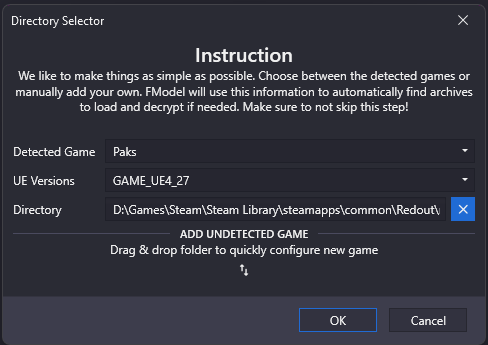
If it does not, click the Directory button at the top of the application and then select Selector.
This is the Directory Selector screen of FModel. The first thing you need to set up with FModel is the directory that contains the game's .pak and/or .utoc files. You can do this either by dragging and dropping that folder into the FModel modal, or you can type out the path to the folder in the “Directory” field. If you drag & drop, the application will continue immediately. If you select a file path manually you will also have to set the “Detected Game” and the UE Versions fields. Detected Game is a drop down list which will probably give you the option between Fortnite, Valorant and Paks. Paks in this context means that you are purely pointing it to Pak files without any additional context. If you select Fortnite or Valorant, it will treat and read from your files like it is Fortnite or Valorant, which is not what you want unless your game is either Fortnite or Valorant. If it is not, select Paks and move on to select the version of Unreal in which the game runs. If you need help determining the version of Unreal that your game runs on, I provide extra help further below.
Once you are set, hit OK. The program might ask you to reload. Let it do that. After the program restarts, you should open the Settings menu from the main ribbon. A screen that looks something like this should open:
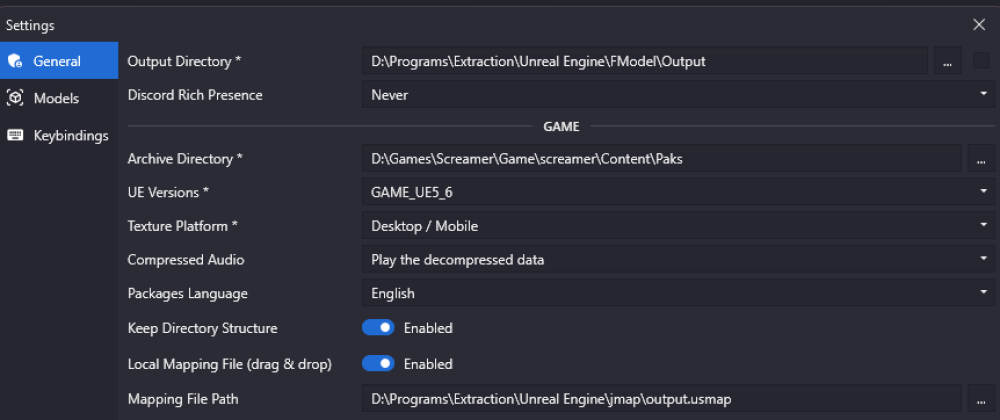 Ignore the exact settings shown in the screenshot. This is to be used for orientation so that you know where to look at. For now, you should focus only on the strictly necessary settings. The strictly necessary settings here are marked with a star. You are already familiar with some of them:
- Output Directory is the folder to which Fmodel will extract when you extract files. This can be anything, select something convenient.
- Archive Directory is the folder containing the game files. You set this up in the Director Selector and it should show the file path here.
- UE Version is the version of Unreal Engine that was used during development of the game. See below for help on determining this.
- Texture Platform is a setting that determines how the game's textures will be read. Unreal Engine saves them differently based on platform, if you are extracting from the files of a Desktop game then you will want to select
Desktop/Mobile.
Lastly, you should also toggle on “Convert Audio during Export (.wav)” further down on the settings page. That way you will not have to deal with Wwise or other middleware dramas.
Step 2 - Loading In
During settings or after, FModel will potentially ask you to restart. Let it do that and you should now be looking at something like this:
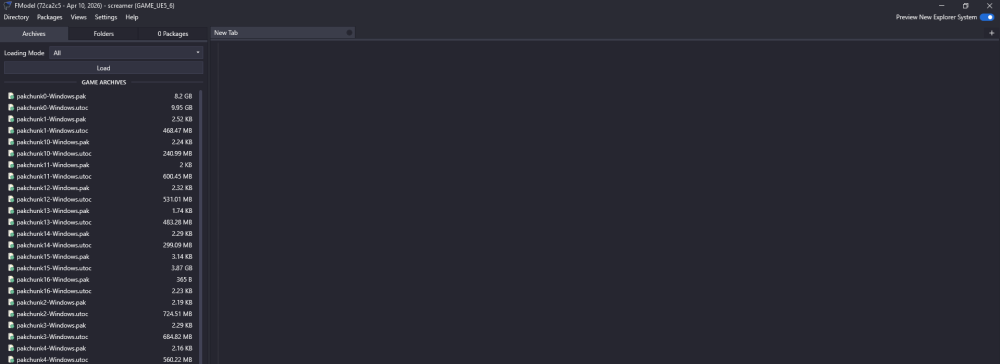 Again, the exact details here don't matter. What matters is that you see a list of files on the left and a blank screen on the right.
On the top left you will see an option called Loading Mode with a dropdown menu. Open the dropdown and select All. Then hit the Load button underneath.
You should now be looking at something like this:
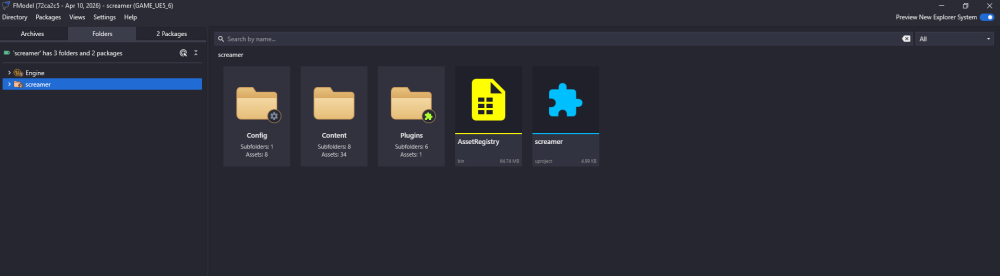
Congratulations, you are in! (You will have to do this every time you boot up FModel. It does not automatically load in the archives when opened.) You may or may not still have to do some extra things, though.
Step 3 - (Probably Required) AES
In many cases, Unreal Engine archives are encrypted with AES encryption. Like a .zip file, FModel can decrypt the files if you provide it with a key. If you can't find the assets you're looking for, are missing assets or FModel prompts you for an AES key, the paks are encrypted and you will have to get the decyrption key, the “password” so to speak.
To enter a key, click “Directory” at top left of your screen, then “AES”. However you find a key, this is where you will have to place it. Below are two ways for finding an AES key for your games.
Step 3.A Finding Keys Online
Luckily, this key is always the same and once one user finds a key, they can share that key with everyone else so that you don't have to find it. CS.RIN.RU has a thread where AES keys for some of the more popular games are listed. You should click the link and potentially bookmark or note it down somewhere so you can find it again in the future. You might also be forced to create an account to actually be able to see the keys. If your game appears in the list, copy out the key.
Alternatively, it is well possible that someone else on the internet found the key and posted it outside the cs.rin.ru thread. Google is your friend.
Step 3.B Finding the Key Yourself
Try this.
Step 4 (Required for Unreal Engine 5 Games) .usmap and jmap
This is a good start and will often already get you pretty far into the game's assets. Thanks to FModel, you don't even have to worry about WWise or other audio handlers, as FModel lets you play .wem and .bank files right inside the application and allows you to export them to .wav so that you don't even have to ever touch any WWise related stuff.
However, in many cases you will be wanting to look into .uasset files, in which case the program will throw an error in the console below. It will mention “Unversioned Properties” or “Missing Mappings”. These errors are related to how Unreal Indexes its files and is a bit involved to explain. In short, FModel needs a file that maps assets stored in files to.. something? I'm not 100% sure myself, but the importantly what you need now is a .usmap file. To do that you will need to use jmap.
Step 4.1
After downloading jmap you should have a file called jmap_dumper.exe. This is a command line program that lets you generate a .usmap file for your game. To do that, you will need to open powershell and navigate to the folder that jmap_dumper.exe is in.
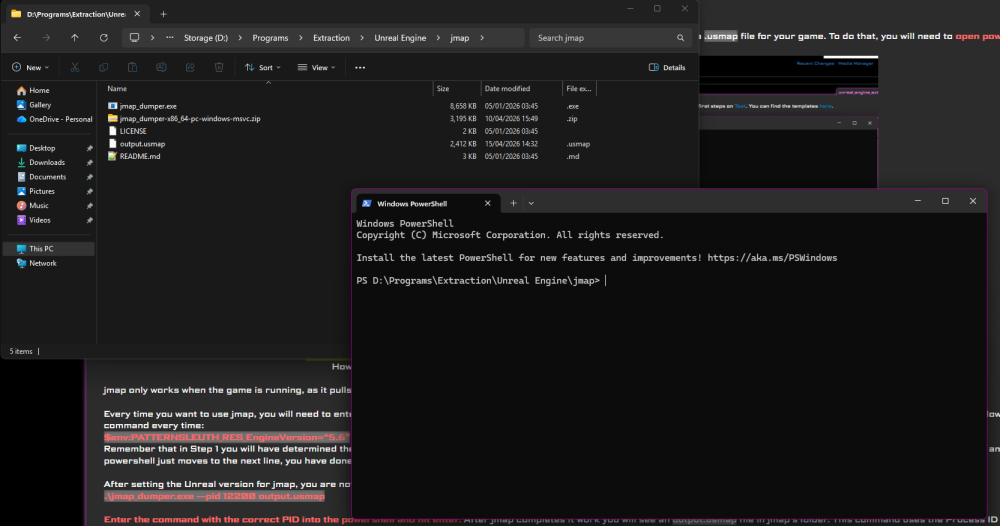
Note that the folder is probably different for you. My jmap dumper is in D:\Programs\Extraction\Unreal Engine\jmap but it can be anywhere for you.
On Windows 11 you should be able to right-click into the window where jmap is in, and then select “Open in Terminal”.
However, depending on your settings it might open Command Prompt instead. jmap requires powershell.
jmap only works when the game is running, as it pulls its data from the active game process. Therefore you will also need to start the game you're trying to extract from.
Every time you want to use jmap, you will need to enter the game's version as an environment variable. These variables are deleted between each session, so you will have to execute the following command every time:
$env:PATTERNSLEUTH_RES_EngineVersion=“5.6”
Remember that in Step 1 you will have determined the version of Unreal in which the game runs. Instead of the 5.6, you should put in the version here that you determined. If you hit Enter and the powershell just moves to the next line, you have done everything right.
After setting the Unreal version for jmap, you are now ready to tell it what to actually do. For that, you will need the following command:
.\jmap_dumper.exe --pid 12200 output.usmap
Enter the command with the correct PID into the powershell and hit enter. After jmap completes it work you will see an output.usmap file in jmap's folder. This command uses the Process ID 12200 as an example, you will have to replace that number with the process ID that your game actually has. Note that a PID changes every time you run the game, so you have to find the PID yourself. If you need extra help for that, I have added extra information on PIDs below.
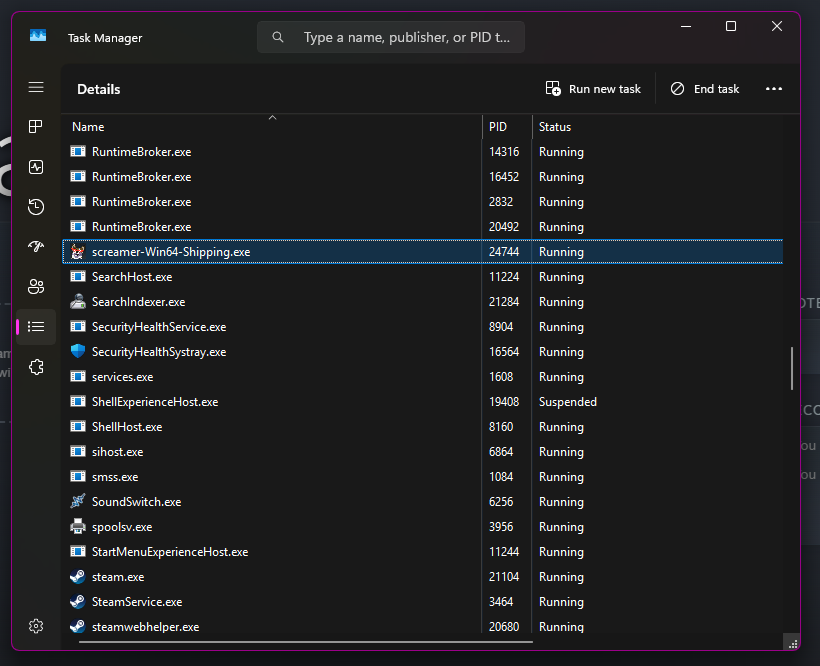
Step 4.2
This mappings file can now be used in FModel. Open the Settings in FModel and toggle the switch “Local Mappings File (Drag & Drop” to on. You can drag and drop your output.usmap file directly into the settings window, or you use the Mapping File Path option below the toggle to specify the directory. Click OK and FModel will probably want to restart. Let it do that, and now when you load in the game files (ie. Step 2), it will do that using the mappings file you provided. From here you can now freely explore the game's archive and extract at your leisure. Feel free to click at every type of file and see what it does. To extract, right click and select what you need (for Audio, for example, you would want “Save Audio”).
Profit!
That is all. With this knowledge you should now be able to work with Unreal Engine games and extract assets from them. Note that you will need additional software to work with more involved file types, like those used for 3D assets/meshes and others. I am not touching on them, though, as these are standardized pieces of software like Blender that, if your goal is to work with 3D assets, you probably already know how to work with.
To use FModel, you will now be primarily interested on the right side of your screen that acts as an explorer for the game's files. Use it to navigate through the folder structure, double click to open files and right click to see options for extracting the selected files. After opening a file it will often show a preview - use the left button on the bottom right to get back to the file/folder view.